
Campaigns let you send marketing email to a targeted group of your customers, right from the platform. A one time campaign sends once; an ongoing campaign checks every day and emails the customers who match its condition that day: a birthday a set number of days away, or no visit in a set number of days, optionally with a single use promo code built for each of them. Build an audience from the customer data you already have, pick one of your email templates, and follow results in a live report that includes the revenue the campaign generated.
Getting started
Navigate to Marketing > Campaigns from the sidebar, then click Create campaign.
Two things need to be in place before a campaign can send. Your group needs a verified custom sending domain, set up under Emails and messaging > Email settings, so your marketing email is sent from your own domain. And your user needs the campaigns permission (admins have it automatically; for custom roles, enable Configure and send email campaigns in the role editor).
How it works
The feature has three surfaces. The campaigns list shows every campaign with its status, recipient counts, and send time, split into Active and Archived tabs. The campaign editor is where you build: it has three sections (General, Template, Send) you can move through with the Next button in the footer. The campaign report opens after sending and tracks results live.
Every campaign has a Campaign type, chosen on the General section. One time sends once to everyone who matches the audience. Ongoing runs every day at a time you choose and emails the customers who meet its condition that day. With Birthday is a number of days away each customer hears from you once a year. With Hasn't visited in a number of days each customer hears from you once per lapse, and again only after a new visit lapses. Both run until you stop the campaign or it reaches an optional stop date. Everyone emailed appears in the campaign's report as it goes.
A campaign's audience is defined by filters over your customer base: who they are, what events they have played, when they last visited, how much they have spent, their tags, or whether their birthday falls this month. The recipient count updates as you adjust filters, and the audience is re-evaluated at send time so late opt-outs are always respected. For an ongoing campaign the count is the reach. For the birthday condition that is everyone with a birthday on file who matches the filters; for the visit condition it is everyone whose last visit is already past the day count plus everyone who will cross it before the stop date (everyone with a visit on file when there is no stop date).
Every send also cleans the list automatically. Addresses that cannot receive mail (a previous bounce or spam report, an invalid address, a disposable email service, or a domain with no mail server) are skipped at send time instead of being sent. The editor shows how many will be skipped and why before you commit, and the report lists each one with its reason.
Campaigns are billed per email sent, at the rate shown on the pricing page (currently $1.00 per 1,000 emails). The editor shows the estimated cost next to the recipient count and an estimated charge line in the review step, so there are no surprises. Emails that fail or are skipped are never billed.
Step-by-step guide
Create a campaign
- On the Marketing > Campaigns page, click Create campaign
- In the General section, enter a Campaign name (required before sending) and an optional Description, and leave Campaign type on One time
- Build your audience (see the next section), then click Next: Template
- Choose a template under Email template; the subject and preview text of the selected template are shown below the picker
- Click Next: Send
- Under When to send, choose Send now or Schedule for later; scheduling asks for a Date and Time in your group's timezone
- Review the summary rows (campaign, audience, recipients, estimated charge, template, schedule); each row has an Edit link that jumps to the right section
- Check the Before it goes out list for warnings, and send yourself a preview with Send a test to yourself first
- Click Send now (or Schedule campaign) and confirm in the dialog
Tip: You can click Save draft at any point once a template is picked, and finish the campaign later. Drafts and scheduled campaigns reopen in the editor from the list's Edit campaign action.
Create an ongoing birthday campaign
- In the General section, set Campaign type to Ongoing
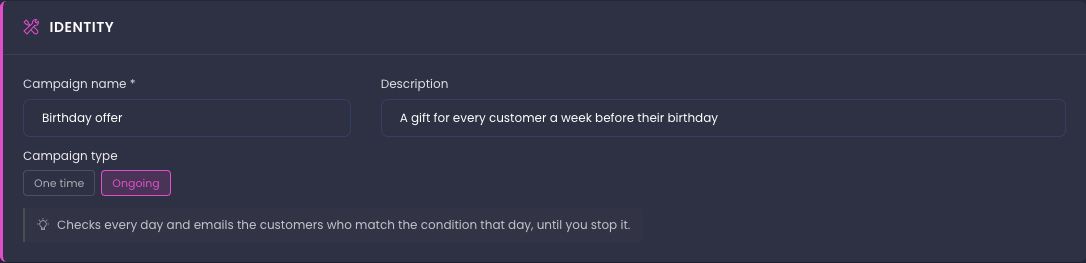
- Build or pick the audience as for any campaign; the filters narrow who can receive it, and the count box shows how many customers with a birthday on file will be reached over the coming year
- Click Next: Template, choose a template, and optionally include a promo code (see the next section)
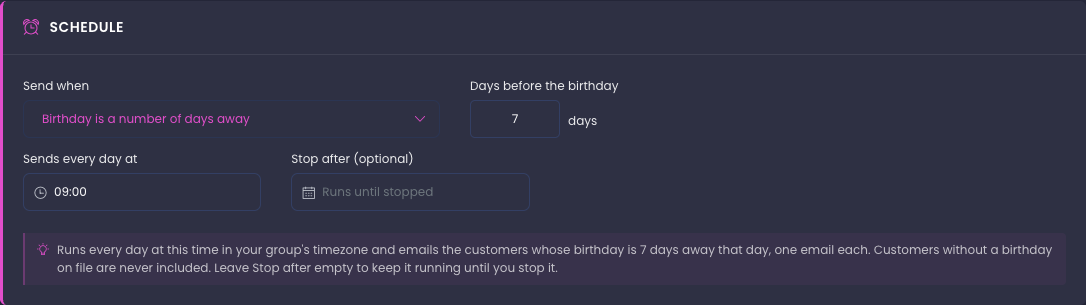
- Click Next: Send. Under Send when, the condition is Birthday is a number of days away; set Days before the birthday (0 sends on the birthday itself)
- Set Sends every day at, which defaults to 9:00 AM in your group's timezone, and optionally a Stop after date; leave it empty to keep the campaign running until you stop it
- Review the summary, send yourself a test, then click Start campaign and confirm
Each day at the send time the campaign emails the customers whose birthday is exactly that many days away, and they appear in the campaign's recipient list with that day's sent time. Customers without a birthday on file are never included. Only one active ongoing campaign per day count is allowed in a group; a second one with the same number of days is refused when you start it.
Create an ongoing campaign for customers who have not visited
- In the General section, set Campaign type to Ongoing and build or pick the audience. The Last visited filter is hidden for this condition, because the condition itself decides who is due; the count box shows how many customers with a visit on file will be reached
- Click Next: Template, choose a template, and optionally include a promo code (see the next section)
- Click Next: Send. Under Send when, choose Hasn't visited in a number of days and set Days without a visit (60 by default)
- Optionally set Send at most N emails per day. Leave it empty for no limit; with a limit, the longest lapsed customers go first and the rest are picked up on the following days
- Leave Skip customers emailed by an earlier campaign with this condition on unless you want this campaign to email customers again who already received a lapse email with the same day count from another campaign in the group
- Set Sends every day at and optionally a Stop after date, review the summary, send yourself a test, then click Start campaign and confirm
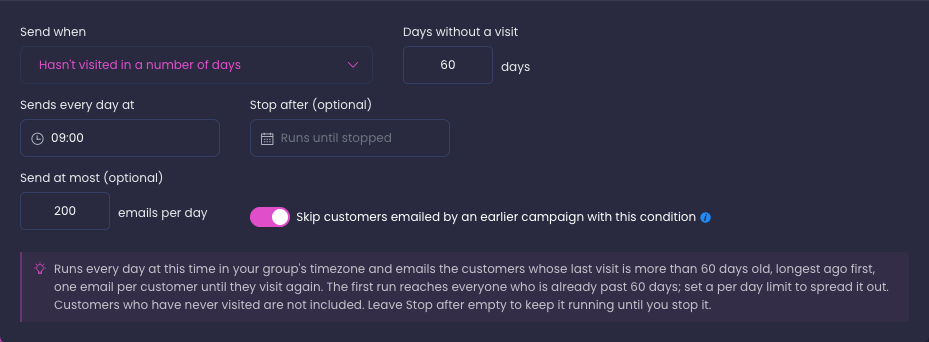
Each day at the send time the campaign emails the customers whose last visit is more than the chosen number of days ago, one email per customer. A customer who visits again leaves the queue and becomes eligible once more when that new visit is the same number of days old. Customers who have never visited are not included. As with the birthday condition, only one active campaign per day count is allowed in a group; starting a second one shows which campaign already covers it.
Tip: The first run reaches everyone who is already past the day count, which can be most of your customer base. Set a per day limit to spread it out.
Include a promo code in each email
- On the Template section, under Promo code, turn on Include a promo code in each email
- Pick a Promo code group that has default settings. If none exists yet, the section links you to the promo codes page to create one first
- Set Valid from (days before the birthday) and Valid until (days after the birthday). For the visit condition there is only Valid until, counted in days after the email is sent
- Put
{{promo.code}},{{promo.validFrom}}and{{promo.validUntil}}in the template so the customer sees the code and its dates; the review checklist warns you when the template does not show the code
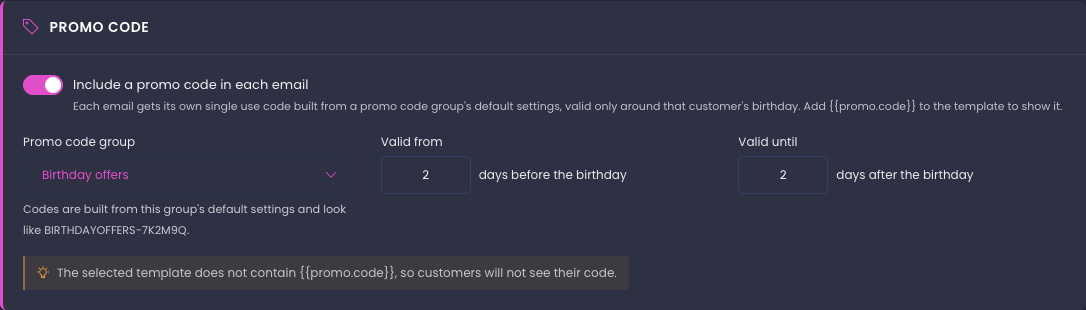
Every email gets its own single use code, built from the group's default settings: the discount, the events, items and gift card types it applies to, the exclusion dates and the eligibility rules such as a minimum party size. The code is named after the group followed by six characters, for example BIRTHDAY20-7K2M9Q, and is valid only for bookings inside that customer's window: around the birthday, or from the send day for a visit campaign. Issued codes belong to the group you picked and are hidden on the promo codes page unless you switch on Issued by campaigns. A test send shows a sample code ending in SAMPLE with sample dates.
Tip: Create the promo code group with default settings first under Purchases > Promo codes > Promo code groups, including any eligibility rules; the campaign copies all of it onto each issued code. See Promo code groups.
Build the audience
- Under Who receives this campaign, choose Build an audience or Use a saved audience
- When building, combine any of the filters: First name contains, Last name contains, Email contains, Played event, Last visited, Lifetime spend, Groups, Tags, and the Birthday this month toggle
- The Tags filter matches tag names exactly as typed and supports Has any of, Has all of, and Has none of
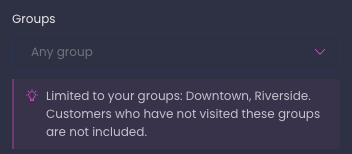
- The Groups filter lists the groups you are assigned to and narrows the audience to customers who have visited any of the selected groups. It only appears when you have two or more groups
- Watch the recipient count box update as you filter; it also shows the estimated cost and a sample of included customers
- Below the count, read the undeliverable line: N will be skipped as undeliverable with a breakdown by reason, then N will be sent. When every address is clean it reads No known undeliverable addresses
- Click View recipients in the count box to open the full list of matching customers. The All, Deliverable, and Undeliverable switcher narrows the list, each undeliverable address carries a badge with its reason, each name opens the customer's profile, and the download icon saves the current view as a spreadsheet
- To reuse the audience later, turn on Save this audience for reuse and give it an Audience name

Leaving all filters empty sends to every subscribed customer you can view. Customers who have unsubscribed are always excluded, whatever the filters say. Customers whose address previously bounced or was reported as spam stay in the count so you can see them, and are skipped at send time with the reason shown in the report.
If you are assigned to only some of your company's groups, every audience you build, save, or send is limited to customers who have visited your groups. A note under the Groups filter, Limited to your groups, lists them. Leaving the filter empty means any of your groups. A saved audience that targets a group you are not assigned to cannot be previewed or sent; the count box shows the message instead of a number.
Check domains before sending
Most undeliverable addresses are known the moment the audience is built. The one check that needs a live lookup is whether a domain has a mail server, and that lookup normally happens as the campaign sends.
- If the count box shows N domains have not been checked for deliverability yet, click Check now
- The line changes to Checking N domains for deliverability and updates on its own; on a large audience this takes up to a couple of minutes
- When it finishes, the undeliverable breakdown includes any domains that cannot receive mail
Domains are remembered for 30 days, so repeat sends to the same customers rarely need the check again.
Edit or delete a saved audience
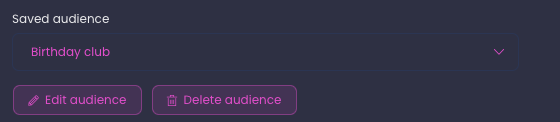
- Under Who receives this campaign, choose Use a saved audience and pick the audience
- Click Edit audience to change its name or filters, then click Save
- Click Delete audience to remove it from the list, then confirm
Campaigns that already use a deleted audience keep the recipients they were saved with. Changes to a saved audience apply to campaigns created after the change.
Manage campaigns from the list
- Use the Active and Archived tabs to switch views, and the filter bar to search by name or status
- Click a draft or scheduled campaign to open the editor; click any other campaign, including an active ongoing one, to open its report
- The actions menu on each campaign offers Edit campaign (drafts and scheduled), Cancel campaign (scheduled and sending), View report, Duplicate, Archive or Restore, and Delete campaign (drafts only)
- An ongoing campaign shows active with runs daily at its send time, finished once it passes its stop date, or stopped after you end it; its menu offers Stop campaign instead of Cancel, and View report at any time. Its report lists everyone emailed so far
Tip: Duplicate starts a fresh draft with the original's name, template, and audience filters prefilled, which is the fastest way to re-run a monthly mailing.
Read the report
- Open a campaign's report from the list (View report) once it is sending or sent
- The four cards at the top show Sent, Delivered, Open rate, and Click rate
- The detail sections cover Details (template, subject, audience, created), Engagement (total opens, total clicks, unique clicks, unsubscribes), Deliverability (failed, skipped, suppressed, bounces, complaints), Revenue (attributed purchases, attributed revenue, customers who purchased), and, for a campaign that issues promo codes, Promo codes (issued, redeemed, expired)
- On an ongoing campaign the cards, sections and the recipient list cover every daily run so far; the Sent column shows the day each customer was emailed
- Each Deliverability row with a count above zero has a download icon that saves the recipients behind that number as a spreadsheet
- In the Revenue section, click the Attributed purchases number to open the list of orders behind it. Each row shows the customer, the order number (click it to open the transaction), the purchase date with the click it was attributed to, and the amount paid with any refund. The download icon in the list header saves the full list as a spreadsheet
- The Recipients table lists every recipient with name, email, status, error, and sent time, plus Promo code and Redeemed columns when the campaign issues codes. Recipients whose email bounced or was reported as spam carry a bounced or marked as spam badge next to their status, and the error column shows the reason in plain words
- Filter the table by Name or email, Status, Delivery issue (bounced, marked as spam, or both), and Reason (why a recipient was skipped), and export the filtered view to CSV with the download icon in the card header
- If you are assigned to only some groups, the Recipients table and every download show only recipients who have visited your groups, and a note above the filters says so. The cards and totals at the top still count every recipient. The Revenue section and the purchases list count only orders placed at your groups, and a note under the revenue rows says so
While a campaign is sending, the report and the list refresh automatically every few seconds. Revenue attribution counts completed orders placed within 7 days of a recipient's first click on the campaign, and revenue is shown net of refunds. Checkouts that failed, were cancelled, or never finished are not counted, so a customer whose first payment attempt failed and who then paid on a retry counts once.
Reference
Audience filters
| Filter | What it matches |
|---|---|
| First name contains | Customers whose first name contains the text |
| Last name contains | Customers whose last name contains the text |
| Email contains | Customers whose email address contains the text |
| Played event | Customers who have played any of the selected events |
| Last visited | Within the last N days, more than N days ago, or never visited |
| Lifetime spend | Total spend at least or at most a chosen amount |
| Groups | Customers who have visited any of the selected groups. Lists only the groups you are assigned to; shown when you have two or more groups |
| Tags | Has any of, has all of, or has none of the typed tag names |
| Birthday this month | Customers whose birthday falls in the current calendar month (one time campaigns only) |
| Birthday is a number of days away | The daily condition of an ongoing campaign: customers whose birthday is exactly that many days away on the day of each run |
| Hasn't visited in a number of days | The other daily condition of an ongoing campaign: customers whose last visit is more than that many days ago, once per lapse |
Campaign statuses
| Status | Meaning |
|---|---|
| Draft | Saved but not sent; can be edited or deleted |
| Scheduled | Will send automatically at the chosen date and time; can be edited or cancelled |
| Sending | Currently sending; can be cancelled to stop remaining sends |
| Held | Paused because the platform's overall email reputation is over the safety limit; nothing is sent until the rate recovers, then it resumes on its own |
| Warming up | A large campaign that sent its first batch and is waiting a few hours before sending the rest; the report shows when sending continues |
| Sent | Finished sending |
| Cancelled | Stopped before or during sending; unsent recipients were skipped |
| Failed | Sending stopped due to a problem, for example the automatic reputation guard |
| Active | An ongoing campaign that runs every day at its send time |
| Finished | An ongoing campaign that passed its stop date |
| Stopped | An ongoing campaign you ended with Stop campaign |
Report metrics
| Metric | What it counts |
|---|---|
| Sent | Emails handed off for delivery, out of the total recipients |
| Delivered | Emails accepted by the recipient's mail provider |
| Open rate | Unique recipients who opened, out of delivered |
| Click rate | Unique recipients who clicked a link, out of delivered |
| Unsubscribes | Recipients who unsubscribed from this campaign |
| Failed and skipped | Emails that could not send, or were excluded at send time |
| Suppressed | Recipients skipped before sending because their address cannot receive mail; included in skipped |
| Bounces and complaints | Delivery rejections and spam reports |
| Attributed purchases and revenue | Completed orders placed within 7 days of a recipient's first click, revenue net of refunds. Failed, cancelled, and unfinished checkouts are excluded. The purchases number opens the list of orders |
Skip reasons
The reason filter on the report, the error column, and the badges in the recipient list use these labels.
| Reason | Meaning |
|---|---|
| Previously bounced | The address hard bounced on an earlier email, from any campaign or automated email on the platform |
| Previously marked as spam | The address reported an earlier email as spam |
| Invalid address | The address is not a valid email, for example a stray space, a missing part, or a common misspelling of a mail provider |
| Disposable email address | The address belongs to a throwaway inbox service |
| Domain cannot receive mail | The part after the @ has no mail server |
| Opted out of marketing email | The customer unsubscribed or was opted out between building and sending |
| Campaign cancelled | The campaign was cancelled before this recipient was sent |
| Stopped by the reputation guard | Sending paused automatically because bounce or complaint rates ran too high |
Good to know
- Every campaign automatically includes an unsubscribe link. Customers who unsubscribe are excluded from all your future campaigns, and automated emails like booking confirmations are not affected.
- Campaign emails use your advanced email templates. Customer details such as first names fill in per recipient, but variables tied to a specific booking or purchase render empty in a campaign, and the editor warns you when a selected template uses them.
- A campaign can reach up to 200,000 recipients. If your audience is much larger than your recent sending volume, the review step shows a warning: mailbox providers trust gradual increases.
- List cleaning is automatic on every send and never edits a customer record. Fixing a mistyped address on the customer's profile makes it deliverable again on the next campaign.
- A temporary bounce (a full mailbox, a provider outage) does not mark an address as undeliverable. Only a hard bounce or a spam report does.
- Skipped and suppressed recipients are never billed.
- Scheduling outside 8:00 to 20:00 in your timezone shows a gentle warning, since marketing email lands best during waking hours. The same warning applies to an ongoing campaign's daily send time.
- An ongoing campaign can use a saved audience; the daily condition is applied on top of the saved filters, and the saved audience itself is unchanged. A saved audience that contains a Last visited filter cannot be combined with the visit condition; pick the birthday condition or a different audience.
- On a day when nobody meets the condition, the day's run is recorded with no recipients and nothing is sent.
- An ongoing campaign that has started cannot be edited; its report shows everyone emailed so far. To change the days, time, audience or promo code, use Stop campaign and then Duplicate it. Stopped and finished campaigns cannot be restarted either; duplicate them.
- Issued promo codes are single use and tied to the customer's window. A code issued for an email that failed to send is archived automatically. Codes are not removed when they expire.
- Daily runs are billed per email sent like any campaign email.
- If a campaign's bounce or complaint rates run too high while sending, it pauses itself automatically to protect your sender reputation, and the remaining recipients are skipped.
- Your sending health (delivery, bounce, complaint, and unsubscribe rates over the last 30 days) is shown on the Email settings page.
- Billing is usage based per sent email and appears on your monthly statement under Settings > Billing. See the pricing page for the current rate.
- The recipient list and its download reflect who matches the audience at that moment. Downloading requires the download data permission.
- Audiences follow the same group visibility as the Customers page. Staff assigned to every group see the whole company; staff assigned to some groups only reach customers who have visited those groups, in the count, the recipient list, the report, and the downloads.
- The audience count is lower than the customer list for the same groups because campaigns only count customers who have an email address and have not unsubscribed.
FAQ
Q: Why did my recipient count go up?
A: Customers whose address bounced or was reported as spam on an earlier email are now counted in the audience instead of being hidden. They are still skipped at send time, and the count box shows how many, so the number you see is the full audience rather than a silently reduced one.
Q: What does "domain cannot receive mail" mean?
A: The part of the address after the @ has no mail server, so nothing can be delivered there. It usually means a misspelled or defunct domain. Ask the customer for a current address; the platform never changes the address on file.
Q: Why is the audience count lower than my customer list?
A: The customer list shows everyone who has visited your groups. A campaign only counts customers who have an email address on file and have not unsubscribed from marketing email, so the audience is always the smaller number.
Q: I cleared the Groups filter, so why does the note still say the audience is limited to my groups?
A: Because you are assigned to some of your company's groups, not all of them, an empty Groups filter means any of your groups rather than the whole company. Select specific groups to narrow further. Staff assigned to every group see no note and reach the whole company when the filter is empty.
Q: Why does my ongoing campaign show zero recipients today?
A: The count on an ongoing campaign is the reach, everyone matching your filters who could meet the condition, not today's recipients. Each daily run then emails only the customers who meet it that day: a birthday exactly the chosen number of days away, or a last visit that just crossed the day count, which on many days is nobody.
Q: Will a customer get the same lapse email every day?
A: No. The visit condition emails each customer once per lapse. They are only emailed again after they visit and that new visit is the chosen number of days old. With the skip switch on, this also holds across campaigns in the group that use the same day count.
Q: The email went out but the promo code was blank. Why?
A: A code is built around the customer's birthday, so a customer without a birthday on file gets the email without a code when a one time campaign includes a promo code. Ongoing campaigns never pick such customers. Also check that the template contains {{promo.code}}; the review checklist warns when it does not.
Q: Why is my recipient count approximate?
A: The audience is re-evaluated at the moment of sending, so customers who unsubscribe or are added between building and sending are picked up correctly. The final count appears in the report.
Q: Can I send to a list I bring from another tool?
A: No. Campaigns send only to your own customers already in the platform, which protects your sender reputation and keeps consent clean. Customers arrive through bookings, waivers, and your other connected touchpoints.
Q: What happens when I cancel a campaign that is already sending?
A: Sending stops as soon as possible. Recipients already sent keep their email; everyone remaining is marked skipped and is never billed.
Q: Why does the report show revenue?
A: Because bookings and purchases happen on the same platform, the report can connect them to campaign clicks. A completed order counts when it happens within 7 days of that customer's first click on the campaign. One customer can count more than once if they order more than once in that window. Click the Attributed purchases number to see every order behind the total.