
Email settings is where you set the sender name and reply-to address that every email Off The Couch sends uses. It is also where you can set up an optional custom sending domain, so emails come from your own domain instead of the default info@offthecouch.io. The page has three sections: Sender configuration, Email identity and Sending health.
Getting started
Navigate to Emails and messaging > Email settings from the sidebar.
How it works
| Section | What it does |
|---|---|
| Sender configuration | The Sender name and Reply to email that appear on every email Off The Couch sends. Save with Save sender settings |
| Email identity | The address your emails are sent from. Defaults to info@offthecouch.io. You can swap it for your own domain through a three-step setup: from email address, DNS records, verify domain |
| Sending health | Sends, delivery rate, bounce rate, complaint rate and unsubscribe rate for the last 30 days |
The default sending address works for every automated email, so most groups never need a custom domain. Set one up when you want emails to come from an address such as noreply@yourvenue.com for branding. Email campaigns need a verified custom domain.
Step-by-step guide
Set your sender name and reply-to
| Field | Notes |
|---|---|
| Sender name | Display name in the From field of every email. Placeholder: "Off The Couch" |
| Reply to email | Where customer replies go, if it differs from the sending address |
Click Save sender settings. A message confirms the save, and any field that needs attention shows its error next to it.
Set up a custom sending domain (optional)
The Email identity section shows Currently sending from with your active address and a status tag.
| Status | Meaning |
|---|---|
| Verified | Sending from the default address or a verified custom domain |
| Pending verification | A custom domain is set up but its DNS records are not verified yet |
| Verification failed | The DNS records of a verified domain can no longer be found. Emails fall back to the default sender and email campaigns pause until the records are restored and verified |
On the default address, click Configure custom domain to start.
1. From email address
Enter the address you want emails to come from in From email address, for example noreply@yourdomain.com. Use a dedicated address on a domain you own; it does not need to be a real mailbox.
Click Confirm and continue, or Cancel to back out.
2. DNS records
The page lists five records to add where your domain's DNS is managed, usually the company you bought the domain from.
| Record | Type | Host | Value |
|---|---|---|---|
| Signing key 1 | CNAME | [token 1]._domainkey | [token 1].dkim.amazonses.com |
| Signing key 2 | CNAME | [token 2]._domainkey | [token 2].dkim.amazonses.com |
| Signing key 3 | CNAME | [token 3]._domainkey | [token 3].dkim.amazonses.com |
| Domain verification | TXT | _amazonses | Your verification code |
| DMARC policy | TXT | _dmarc | v=DMARC1; p=none; |
Every record shows a Host (the name without your domain) and a Full name (the host followed by your domain), each with its own copy icon. Most DNS providers add your domain to the end of the name on their own. If you paste the full name into one of them, the record ends in your domain twice and verification never succeeds.
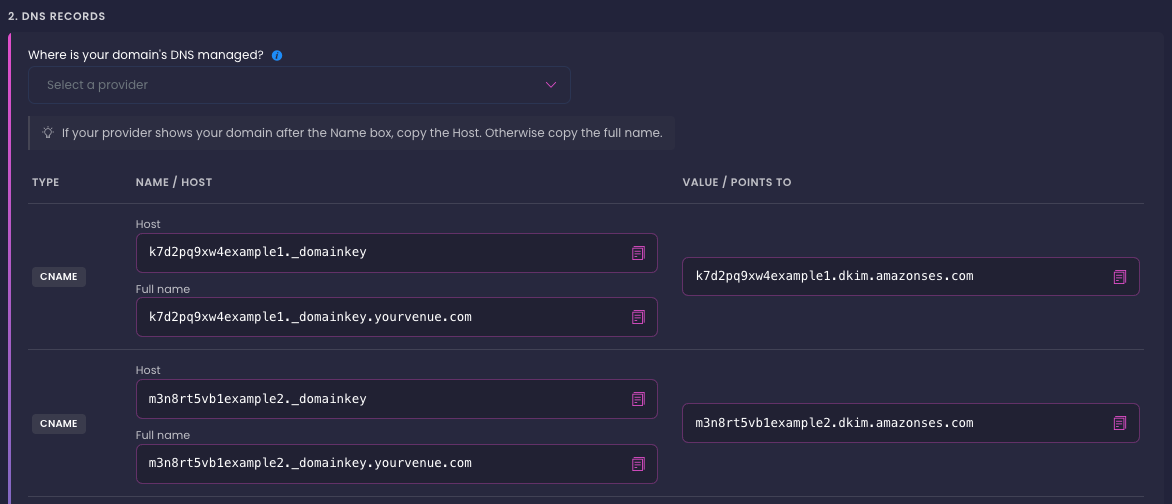
Pick your provider in Where is your domain's DNS managed?
| Choice | What the page shows |
|---|---|
| Cloudflare, GoDaddy, Namecheap or Squarespace | Only the Host for each record, plus a link to that provider's own guide to adding a record |
| Other or not sure | Both the Host and the Full name, with the rule: if your provider shows your domain after the Name box, copy the Host. Otherwise copy the full name |
When you pick Cloudflare, the page also reminds you to set each CNAME record to DNS only (grey cloud) and to leave CNAME flattening off for these records. A proxied or flattened record fails verification.
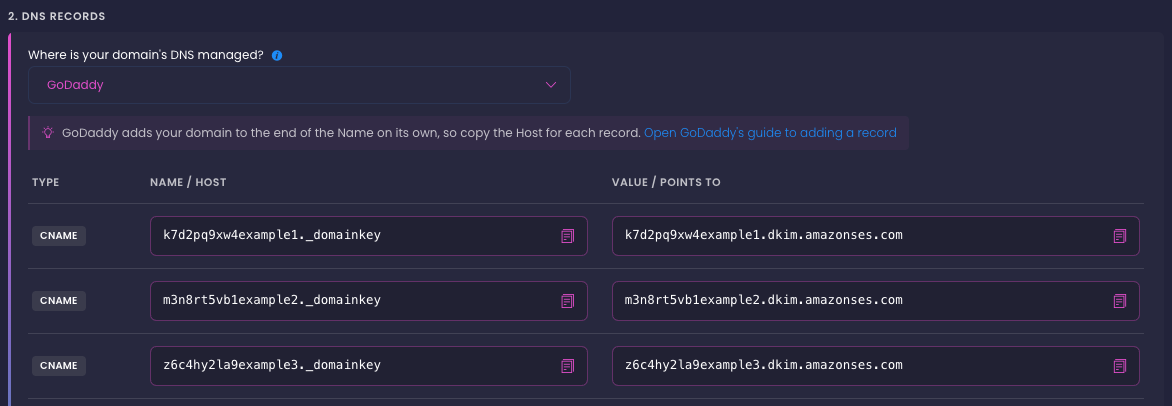
For each record, add a record at your provider with the type shown, paste the Host (or the full name) and the Value, and leave TTL at the default.
Tip: Already have a _dmarc TXT record? Keep yours and skip the DMARC row. A domain can have only one DMARC record.
The notes under the table also link to DNSChecker.org and MXToolbox, and give a command-line check for your domain's verification record.
3. Verify domain
Add all five records, then wait at least 15 minutes before you click Verify domain. Full propagation can take up to 48 hours.
| Result | What you see |
|---|---|
| Verified | "Verified. Your domain is active." Click Complete setup to finish |
| Not yet verified | A message that new records can take a few hours to appear, and to check that no Name in your DNS provider ends in your domain twice |
Click Verify domain as often as you need.
Recheck or change a custom domain
Once a custom domain is set up, the Email identity section shows these controls instead of Configure custom domain:
| Control | What it does |
|---|---|
| Check verification status | Checks the records again without restarting setup. Shown while the domain is not verified |
| Change domain | Restarts setup with a new address |
| Switch to default | Asks you to confirm, then returns to the default info@offthecouch.io address. Your custom DNS records can stay in place; they just stop being used |
If your records stop being detected, a red notice appears with a View DNS records link that opens the records and the verify step again.
Reference
Sender configuration
| Field | Required | Notes |
|---|---|---|
| Sender name | Yes | Display name in the From field |
| Reply to email | Yes | Must be a valid email address |
| Save sender settings | Button | Saves both fields |
Email identity controls
| Control | When it shows |
|---|---|
| Configure custom domain | On the default address |
| Check verification status | On a custom domain that is not verified |
| Change domain | On a custom domain |
| Switch to default | On a custom domain |
DNS provider choices
| Provider | Copy |
|---|---|
| Cloudflare | Host, with records set to DNS only |
| GoDaddy | Host |
| Namecheap | Host |
| Squarespace | Host |
| Other or not sure | Host if your provider shows your domain after the Name box, otherwise the full name |
Good to know
- Sender configuration is required. The sender name and reply-to email apply to every email Off The Couch sends.
- The custom domain is optional. Most groups stay on the default
info@offthecouch.iosender. Email campaigns need a verified custom domain. - Copy the Host for most providers. Cloudflare, GoDaddy, Namecheap and Squarespace add your domain to the record name themselves; pasting the full name doubles it.
- All five DNS records are needed. Missing any one blocks verification.
- DNS changes take time. Wait at least 15 minutes before the first check; full propagation can take up to 48 hours.
- Sending from a subdomain? For an address such as
noreply@mail.yourdomain.com, a provider that only manages your main domain needs the subdomain added to the Host, for example_dmarc.mail. - Switching back to default doesn't break anything. Your custom DNS records can stay in place until you set the domain up again.
FAQ
Q: Do I need a custom domain to send emails?
A: No. The default info@offthecouch.io works for every automated email. A custom domain is for branding, and email campaigns need one.
Q: Should I paste the Host or the Full name?
A: Pick your provider in Where is your domain's DNS managed? and the page shows only what to paste. If your provider isn't listed, look at the Name box: if your domain appears after it, paste the Host; otherwise paste the full name.
Q: My verification keeps failing. What do I check?
A: First check that no record name at your provider ends in your domain twice, such as _dmarc.yourdomain.com.yourdomain.com. Then confirm all five records exist, and use DNSChecker.org or MXToolbox to see whether they have propagated. On Cloudflare, make sure each CNAME record is set to DNS only.
Q: How long does verification take?
A: Usually 15 minutes to a few hours, and up to 48 hours. Click Verify domain as often as you need.
Q: Does the email I enter need to be a real mailbox?
A: No. Setup verifies the domain, not the mailbox, so an address such as noreply@yourdomain.com works even if nobody checks that inbox.
Q: Can I change the sender name and reply-to per email type?
A: Yes. Each Simple email and custom Email template can override the sender name and email. The Email settings values are the defaults.
Q: I already have a DMARC record. Do I add another one?
A: No. Keep your existing _dmarc record and skip the DMARC row. A domain can have only one DMARC record.
Q: I switched back to default. Should I delete my custom DNS records?
A: Up to you. The records don't conflict with anything. Keep them if you might set the domain up again later.