
The Messages page shows everything your location has sent to each customer, by email and by text, with the delivery status of each message. Texts are two-way: customer replies land here, and you can answer them or start a new conversation without leaving the console.
Getting started
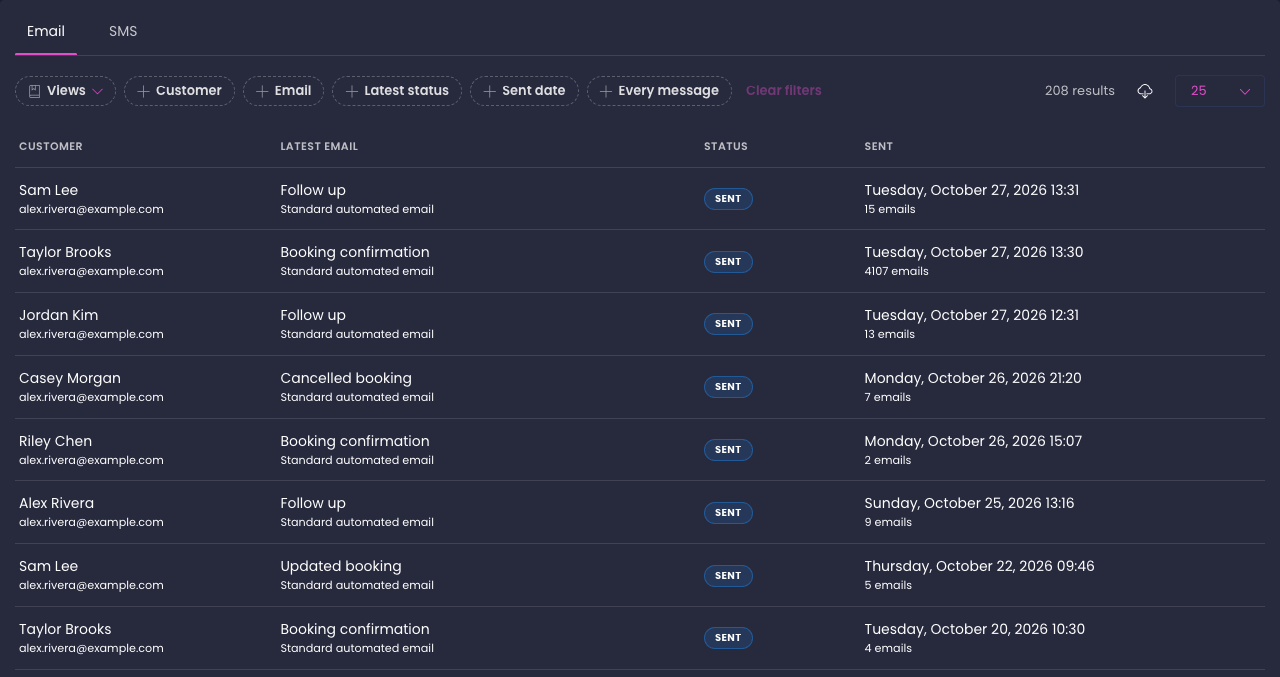
Navigate to Emails and messaging > Messages from the sidebar. The page opens on the Email tab.
Staff need the permission that lets them manage automated emails to open the page.
How it works
The page has two tabs, Email and SMS. Each tab opens on a list with one row per customer, so you see at a glance who was contacted last and whether the message got through. Clicking a row opens a drawer with that customer's full history.
Each list carries an Every message filter. Switch it on to see one row per message instead of one row per customer, which is the view to use when you want to audit a day's sends or export them. Switch it off, or clear your filters, to return to the per-customer list.
The SMS tab appears for every location. It fills up once the location has its own text messaging number; until then it shows an empty state.
| Tab | Per-customer list shows | Drawer shows |
|---|---|---|
| Customer, latest email, status, when it was sent and how many emails they have received | Every email sent to that customer, newest first, with status, the related transaction and a delivery history | |
| SMS | Customer, the latest message, last activity and an unread count | The conversation as a chat, with a composer to reply |
Step-by-step guide
Review a customer's emails
- Open Emails and messaging > Messages and stay on the Email tab
- Use the Customer filter to search by email address, Email to search by template or email type, Latest status to pick one or more statuses, or Sent date for a date range
- Click a row. The drawer lists every email sent to that customer, newest first, with its subject, where it came from and a status chip
- Click History under an email to see each delivery event with its time, or Transaction to open the transaction the email belongs to
- Click Close or press Escape to return to the list
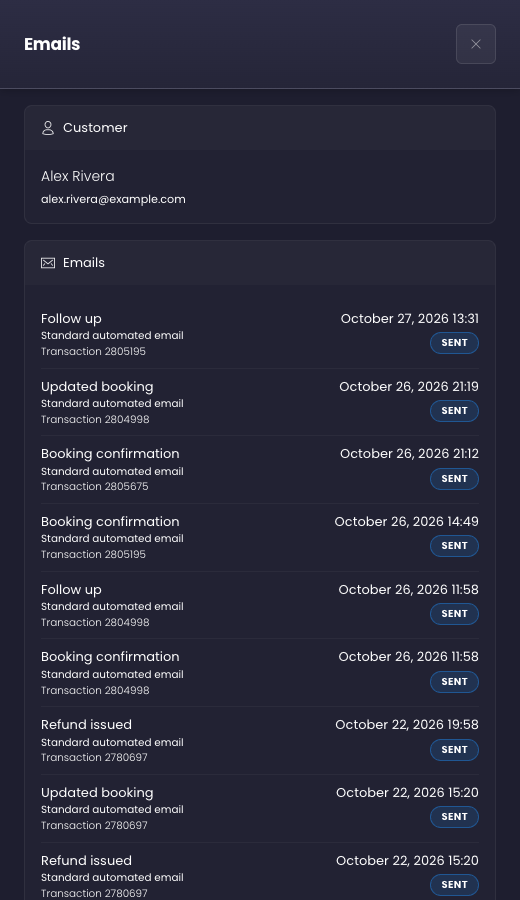
Tip: Emails are sent from transactions, so the drawer is a record rather than a composer. To email a customer, open the transaction and use Send an email.
Audit every email sent
- On the Email tab, switch on the Every message filter
- The list changes to one row per message with Sent, Status, To and Email columns. Click Sent or Status in the header to sort
- Click a row to open the message's own drawer with its delivery details
- Switch Every message off to go back to the per-customer list
Read and answer text conversations
- Open the SMS tab. Each row is one customer conversation, with the latest message, the last activity time and a pink new chip when there are unread replies
- Use the Customer filter to search by name or phone number, or switch on Unread to see only conversations waiting for an answer
- Click a row. The drawer shows the conversation as a chat: your texts on the right with their delivery status, the customer's replies on the left
- Type in the Type a message box and click Send. The counter under the box shows how many characters and credits the text will use
- Opening a conversation marks it as read, and the drawer refreshes on its own while it is open
Start a new text conversation
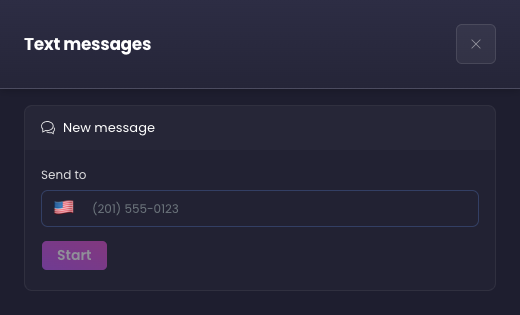
- On the SMS tab, click New message beside the tabs
- Enter the customer's mobile number in Send to and click Start
- Type the message and click Send. The conversation appears in the list once the first text is sent
Audit every text
- On the SMS tab, switch on the Every message filter
- The list shows one row per text with Sent, Status, To, Source and Segments columns. Filter by Phone number, Status, Direction (Sent or Received) or Sent date
- Click a row to open the conversation it belongs to
Export a list
Click the download icon beside the result count on any list to download it as a CSV. Both the per-customer lists and the Every message lists export, with the filters you have applied.
Reference
Email statuses
| Status | Meaning |
|---|---|
| Sent | Handed to the mail provider |
| Delivered | Accepted by the customer's mail server |
| Opened | The customer opened the email |
| Clicked | The customer clicked a link in it |
| Delayed | Delivery is being retried |
| Bounced | The address rejected it |
| Complained | The customer marked it as spam |
Email sources
| Source | Meaning |
|---|---|
| Standard automated email | One of the built-in simple emails, such as a booking confirmation or reminder |
| Automation: name | Sent by one of your automations |
| Campaign: name | Sent by a marketing campaign |
| Sent from the console | Sent by a staff member from a transaction |
Text statuses
| Status | Meaning |
|---|---|
| Queued, Sending, Sent | On its way; the chip updates as the carrier reports back |
| Delivered | The customer's phone received it |
| Undelivered, Failed | The carrier could not deliver it; the error code shows under the chip |
| Received | A reply from the customer |
Text sources
| Source | Meaning |
|---|---|
| Test message | A test sent from SMS settings |
| Manual | Typed in a conversation on this page |
| Customer reply | A text the customer sent you |
| A template name | Sent by an automation using that SMS template |
Good to know
- Every text, sent or received, uses one credit per message segment, and texts count toward the credits included with your number. See Billing for the rates.
- A customer who replies STOP is opted out, and the composer refuses to send to them until they reply START.
- Replies are matched to customers by their phone number on file. A reply from a number no customer has is still listed, under the number itself.
- Text messaging is available for US numbers and, while it is in limited beta, only for accounts that have been added to the beta. The Email tab works for every account.
- Saved views on this page remember the tab and the Every message setting, so a view saved from the audit list opens the audit list.
FAQ
Q: Why is the SMS tab empty?
A: The tab fills once the location has registered its own number under Emails and messaging > SMS settings and sent or received a text. Until then there is nothing to list.
Q: Can I send an email from the Messages page?
A: No. Emails belong to a transaction, so open the transaction from the Transaction link in the drawer and use Send an email there. Texts can be sent from the page directly.
Q: Does opening a conversation notify the customer?
A: No. Opening a conversation only clears the unread count on your side.