
Booking schedules generate the time slots that appear on your booking site and calendar. The editor lets you build a weekly slot pattern (manually or with the Generate slots drawer), set custom pricing and a custom message per slot, configure autoblock to prevent conflicts with other events, and set booking restrictions like minimum/maximum notice and call-to-book windows.
Getting started
Navigate to Schedules in the sidebar, and either click Create schedule at the top right and pick Booking schedule, or click into an existing booking schedule to edit it.
How it works
A booking schedule has two halves: the schedule details (name, associated events, duration type, dates, status) and the time slots (a weekly calendar where you place slots that will repeat). The system generates actual booking slots forward from the start date based on the schedule's pattern.
Each individual time slot can be customized with its own status, pricing, custom message, autoblock rules, and booking restrictions. Use Bulk update slots to apply settings to every slot at once, then click into individual slots to override. Everything opens in a side drawer with the same sections as the booking calendar's slot drawer: Slot details, Booking options, Display options, Custom message, and Slot pricing.
Step-by-step guide
Configure schedule details
| Field | Notes |
|---|---|
| Schedule name | Display name |
| Associated events | Multi-select of events this schedule generates slots for. Required for booking schedules |
| Schedule duration | Recurring (ongoing), Between selected dates (finite range), or Closed period (blackout) |
| Start date | Required for all duration types |
| End date | Required for Between selected dates and Closed period. Between selected dates can end up to one year from today, Closed period up to five years from today |
| Schedule status on creation | Generate live time slots on creation of this schedule (active) or Do not generate time slots until the schedule is activated (inactive) |
When Closed period is the duration type, the Time slots section is hidden: closed periods do not have a slot pattern, they just block the date range.
Build the weekly slot pattern
The Time slots section has an interactive calendar with three buttons above it. Each button opens a side drawer.
| Button | Drawer title | What it does |
|---|---|---|
| Generate slots | Generate slots | Bulk-generates slots based on event duration, gap, and start/end times across selected days, using the settings in the drawer as each slot's defaults |
| Bulk update slots | Bulk update time slot settings | Applies the settings in the drawer to every slot already on the calendar for the selected days |
| Copy day | Copy day | Copies every slot from one day onto other days. See Copy a day to other days below |
The generate and bulk update drawers have the same collapsible sections. Only Slot details is expanded when the drawer opens; click a section header to expand it.
Slot details
| Field | Notes |
|---|---|
| Event duration (minutes) | How long each slot lasts. Generate slots only |
| Gap duration (minutes) | Buffer between consecutive slots. Generate slots only |
| Applicable days | Mon to Sun checkboxes. Generate slots creates slots on these days; Bulk update slots only changes slots on these days |
| Start slots on | Time the first slot starts. Sits under Applicable days. Generate slots only |
| End slots on | Time the last slot ends by. An end earlier than the start runs past midnight into the next day. Generate slots only |
| Limit to a time range | Toggle, off each time the drawer opens. When on, Bulk update slots only changes slots that start between Slots starting from and To on the checked days, both times included. Bulk update slots only |
| Slot status | Available, Call to book, or Requestable. Drives whether the slot is bookable on the booking site, surfaces a call-to-book label, or shows a request to book button (see the Request to book article) |
Booking options
Shown for Available, Call to book, and Requestable slots.
| Field | What it sets |
|---|---|
| Allow bookings after start time | Toggle. When on, customers can book up until X minutes after the slot starts (late-booking window) |
| Minimum booking notice / Maximum time after booking start | Number plus period selector (minutes / hours / days / weeks / months). Controls how far in advance the slot must be booked |
| When minimum notice passes | Three options for what happens once the slot enters its minimum-notice window: Show as call to book (default), Show as request to book (customers can submit a booking request; see the Request to book article), or Hide slot (removed from the booking page). Only shown when Allow bookings after start time is off |
| Maximum bookings in advance | Number plus period selector. Controls how far in the future the slot is bookable |
Display options
| Field | What it sets |
|---|---|
| Minimum notice block off text / Maximum time after start block off text / Time slot text | Customer-facing text for the slot. The label depends on the slot status and the late-booking toggle |
| Link to external page | Toggle. Reveals a URL field (placeholder "https://example.com") for slots managed by a third-party system |
Custom message
Sets a short note shown to customers on every slot the drawer creates or updates, in addition to any other slot text. See Add a custom message below for the fields.
Slot pricing
Shows a read-only summary (Pricing, Pricing type, Reservation style, Cumulative, Deposit, and Durations when multiple durations are on). Click Edit pricing to open the Custom pricing view; see Configure custom pricing below.
Drawer buttons
| Drawer | Buttons |
|---|---|
| Generate slots | Cancel, Generate slots |
| Bulk update time slot settings | Cancel, Update slot settings |
| Copy day | Cancel, Copy slots |
Generating or updating is blocked while the custom message toggle is on with an empty message, or while custom pricing has an error; the drawer jumps to the section that needs attention.
Clear slots in a time range
The Clear slots in range button sits under Start slots on and End slots on in the Generate slots drawer. It removes every slot on the ticked days that starts between those two times, whether it was generated or added by hand. Slots outside the range and on the other days stay as they are, so it works as an undo while you generate.
- Click Generate slots above the calendar
- Under Applicable days, tick only the days to clear
- Set Start slots on and End slots on to the range to clear
- Click Clear slots in range, then Clear slots in the confirmation
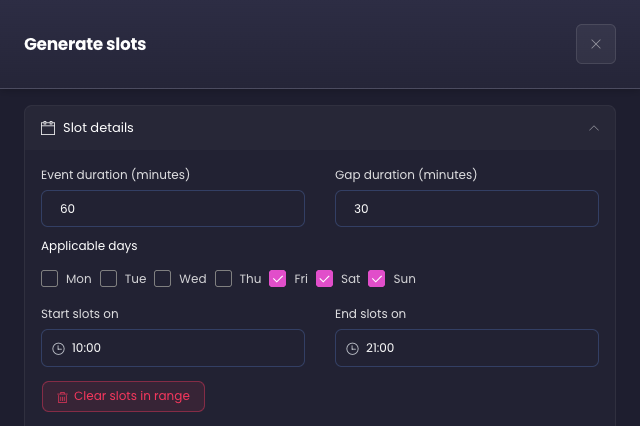
The confirmation names the range and the days. A message then shows how many slots were removed and how many on those days were kept. The drawer stays open, so you can generate new slots right away.
To clear whole days, set the range from 12:00 AM to 11:59 PM. If no slot starts in the range, a message says so and nothing is removed.
Update only the slots in a time range
Bulk update slots changes every slot on the checked days unless you limit it to a time range. Use this to change only your evening slots, for example.
- Click Bulk update slots above the calendar
- Under Applicable days, tick the days to change
- Turn on Limit to a time range, then set Slots starting from and To
- Set the fields to change and click Update slot settings
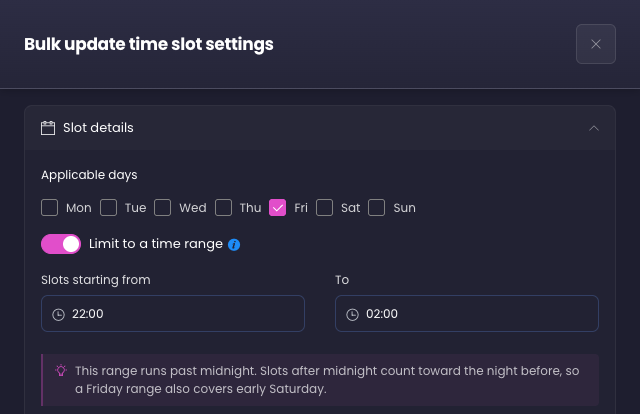
Only slots that start in the range change, and both times count as inside it. A message shows how many slots were updated. If none start in the range, a message says so and nothing changes. The toggle is off and every day is ticked each time the drawer opens.
Time ranges past midnight
A range whose end is earlier than its start runs past midnight, and the drawer shows a note when it does. Slots after midnight count toward the night before. With Friday ticked, 10:00 PM to 2:00 AM covers the slots that start early Saturday morning, and a Sunday range covers early Monday.
This works the same in Generate slots, Clear slots in range, and Bulk update slots. Generate slots does not create a slot that would end at or after midnight on Sunday, since it would end outside the weekly pattern. A message shows how many slots were created and how many were skipped.
Copy a day to other days
Copy day copies every slot on one day onto the days you pick. Each copy keeps the original slot's status, booking options, display options, custom message, and pricing. Copies are separate slots, so editing one never changes the original.
- Click Copy day above the calendar
- Pick the day to copy in Copy from
- Tick the days to fill under Copy to (the source day can't be ticked)
- Choose what happens to Slots already on these days
- Click Copy slots
| Option | What it does |
|---|---|
| Replace | Removes the slots already on the ticked days, then adds the copies. A confirmation names the days that have slots before anything is removed |
| Add | Keeps the slots already on the ticked days and adds the copies next to them |
A slot that would end at or after midnight on Sunday is not copied, since it would end outside the weekly pattern. A message shows how many slots were copied and how many were skipped.
Configure per-slot settings
Click any slot in the calendar to open the Edit time slot drawer, or click an empty area of the calendar to open Create time slot. The drawer has the same collapsible sections as the generate and bulk update drawers; only Slot details is expanded on open.
Slot details
| Field | Notes |
|---|---|
| All day event | Toggle. When on, the slot covers the full day and the day and time fields are hidden |
| All day event text | Shown instead of the time range for all-day slots (placeholder "e.g., All day") |
| Start day / Start time | Day of the week dropdown and time picker |
| End day / End time | Day of the week dropdown and time picker |
| Slot status | Available, Call to book, or Requestable |
Booking options, Display options, and Custom message
Same fields as in the generate and bulk update drawers above, applied to this slot only.
Slot pricing
The section shows a summary of the slot's pricing. Click Edit pricing to open the Custom pricing view; see Configure custom pricing below.
Delete slot
A Delete slot card with a Delete button appears at the bottom of the drawer when editing an existing slot. Deleting removes the slot from the calendar; the change takes effect when the schedule is saved.
Add a custom message
Custom messages display a short note like "Closed for Christmas!" on the slot on the booking site, independent of its status and in addition to any other slot text. The same feature exists on individual booking slots in the Bookings pages; setting it on a schedule means every slot generated from that schedule carries the message automatically, including slots created overnight.
- Open the Custom message section in the slot drawer, the Generate slots drawer, or the Bulk update time slot settings drawer
- Turn on the toggle (Show message on booking slots from this template in the slot drawer, Show message on these booking slots in the generate and bulk update drawers)
- Type the message in the Message field (max 200 characters; placeholder "e.g. Closed for Christmas!")
- Pick a Display style: Text (inline under the slot's time) or Badge (small corner pill on the slot tile)
- Check the Preview, then click Create, Update, Generate slots, or Update slot settings
The toggle controls visibility independently of the text. Saving with the toggle on but the message blank is blocked with "Add a message before enabling, or turn the toggle off". The section shows "Badges read best with 20 characters or fewer." when a badge message runs long.
Configure custom pricing
Click Edit pricing in the Slot pricing section. The drawer switches to the Custom pricing view; the back arrow in the title or the Done button returns to the main form. Done validates the pricing first and highlights any problem.
| Field | Notes |
|---|---|
| Enable custom pricing | Toggle. When off, slots use the event's default pricing |
| Pricing type | Per person or Flat |
| Reservation style | Private booking or Public booking |
| Category pricing is cumulative | Toggle. When on, multi-category bookings adjust per-person rates based on the total group size across categories |
| Hide pricing rate on booking site | Toggle. Customers see only the total, not the rate |
| Limit to one category per purchase | Toggle. When on, customers can only purchase one pricing category at a time |
| Enable multiple durations | Toggle at the top of Pricing categories. When on, the template offers several lengths, each with its own categories, and every slot the schedule generates carries them. Add duration adds a length; select a duration pill to price it. See Multiple event durations |
| Categories | One card per category with Add category to create more. Each card has a Category name, price tiers (a Participants range and a Price per tier, with Add tier and remove buttons), and participant limits (Min required, Max allowed, Default) |
Turning on Enable custom pricing adds a starter category named Person so there is always something to price.
Deposits
The Deposits section sits under the categories in the Custom pricing view.
| Field | Notes |
|---|---|
| Allow deposit | Toggle |
| Require only deposit amount during checkout | Toggle. When on, customers can pay just the deposit at checkout |
| Deposit type | Per booking or Per participant |
| Deposit amount | Currency input |
Save the schedule
After configuring details, slot patterns, and per-slot overrides, click Create schedule (new) or Update schedule (existing) at the bottom of the page. Cancel discards changes.
When saving, updating, or activating a schedule whose events already have future slots, the Review future slots panel opens so you can decide what to do with them. When there are no existing slots, the schedule runs straight away with no panel.
Review future slots
The Review future slots panel opens from the right when saving, updating, or activating a schedule whose events already have future slots. It counts the existing slots per status and lets you decide, per status, whether to remove them and whether to create new slots over them.
| Element | Notes |
|---|---|
| Title | Review future slots |
| Info note | "Existing slots stay unchanged unless selected below. Booked and requested slots are never removed." |
| Status sections | One section per status, titled with the status and its count: Booked, Requested, Requestable, Call to book, Blocked, Custom status |
| Highlighting | A section with slots is highlighted in that status's color and starts open. A section with no slots starts collapsed and its toggles are disabled. Click a section header to open or close it |
| Per-status toggles | Remove existing slots, Create overlapping slots |
| Overlap behavior picker | Shown for a status when Create overlapping slots is on. Three options: Create all, Skip on start match, Skip on exact match |
| Booked and Requested sections | Create overlapping slots + overlap behavior picker only. These slots are never removed |
| Cancel | Closes the panel without saving |
| Create / Update / Activate schedule | Confirms the chosen actions and runs the schedule |
Overlap behavior options
When Create overlapping slots is off, every new slot that overlaps an existing one in any way (even just sharing a start or end) is skipped. When it's on, the three-option picker below chooses how strictly to avoid duplicates:
| Option | Behavior |
|---|---|
| Create all | Creates every overlapping slot, including exact duplicates |
| Skip on start match | Skips a new slot if any existing slot shares its start time, regardless of end time |
| Skip on exact match | Skips only true duplicates (both start and end identical). Partial overlaps with a shared start or end still get created |
Use Skip on exact match for venues running sessions of varying lengths who want legitimate partial overlaps but no exact duplicates. Use Skip on start match for venues that never want two events to start at the same time. Create all is for the rare case where duplicate slots are intentional.
Requestable slots work like Call to book. With both toggles off, existing requestable slots stay on the calendar and the schedule creates nothing at the same times. Turn on Remove existing slots to replace them, or Create overlapping slots to add the new slots alongside them. Slots the schedule creates for its own definition in the same run never block each other, so back to back requestable or call to book time slots in the schedule always get created.
Reference
Schedule details fields
| Field | Required | Notes |
|---|---|---|
| Schedule name | Yes | |
| Associated events | Yes | Multi-select |
| Schedule duration | Yes | Recurring / Between selected dates / Closed period |
| Start date | Yes | |
| End date | Conditional | Required for finite and closed-period. Finite schedules up to one year out, closed periods up to five years out |
| Schedule status on creation | Yes | Active or Inactive |
Time slot status options
| Status | Behavior |
|---|---|
| Available | Bookable on the booking site |
| Call to book | Visible but not bookable online; customer must call |
| Custom statuses | Configurable per group |
Pricing fields
| Field | Notes |
|---|---|
| Enable custom pricing | Master toggle |
| Pricing type | Per person or Flat |
| Reservation style | Private booking or Public booking |
| Category pricing is cumulative | Adjusts per-person rates by total group size across categories |
| Hide pricing rate on booking site | Hides per-person rate from customers |
| Limit to one category per purchase | Customers buy from one category at a time |
| Enable multiple durations | Several lengths per template slot, each with its own categories; generated slots carry them |
| Categories | Price tiers (participant count range and price) plus per-category Min required, Max allowed, Default |
Autoblock fields (per slot)
| Field | Notes |
|---|---|
| Enable autoblock | Master toggle |
| Block slots with the following status | Blocked or Call to book |
| Include event start/end time in block rule | Treats slots starting or ending at the same time as overlapping |
| Apply blocking rule to all events | When off, pick specific events |
| Auto-unblock when bookings change | Reopens blocked slots whenever bookings change (new, edited, moved, or cancelled) and resource capacity is available. When on, a Restore picker chooses scope: Blocked & call to book (default) or Blocked only (leaves call-to-book slots in place) |
Booking restriction fields (per slot)
| Field | Notes |
|---|---|
| Allow bookings after start time | Late-booking toggle |
| Minimum booking notice / Maximum time after booking start | Number + period |
| When minimum notice passes | Show as call to book (default), Show as request to book, or Hide slot. Only shown when Allow bookings after start time is off |
| Maximum bookings in advance / Maximum notice | Number + period |
| Time slot text / Minimum notice block off text / Maximum time after start block off text | Customer-facing slot text |
| Link to external page | Toggle plus URL field |
| Custom message | Toggle, message (max 200 characters), display style (Text or Badge), preview |
Deposit fields (per slot, custom pricing on)
| Field | Notes |
|---|---|
| Allow deposit | Master toggle |
| Require only deposit amount during checkout | Customer pays only deposit |
| Deposit type | Per booking or Per participant |
| Deposit amount | Currency input |
Review future slots panel
| Status | Available actions |
|---|---|
| Booked, Requested | Create overlapping slots + overlap behavior picker. Never removed |
| Requestable, Call to book, Blocked, Custom status | Remove existing slots, Create overlapping slots + overlap behavior picker |
Overlap behavior options (when "Create overlapping slots" is on)
| Option | Behavior |
|---|---|
| Create all | Creates every overlapping slot, including exact duplicates |
| Skip on start match | Skips any new slot whose start time matches an existing slot |
| Skip on exact match | Skips only true duplicates (both start and end identical) |
Save buttons
| Mode | Buttons |
|---|---|
| Create | Cancel, Create schedule |
| Edit | Cancel, Update schedule |
| Create time slot / Edit time slot drawer | Cancel, Create / Update (Done while in the Custom pricing view) |
| Generate slots drawer | Cancel, Generate slots |
| Bulk update time slot settings drawer | Cancel, Update slot settings |
| Copy day drawer | Cancel, Copy slots |
Good to know
- Generate slots is the fastest way to start. Set your hours, slot duration, and gap in the drawer; it creates the full week's pattern. Then customize individual slots if needed.
- Bulk update slots changes existing slots. It applies the drawer's settings to every slot already on the calendar for the selected days. Use it to lock in the common configuration, then click individual slots only to handle exceptions.
- Build one day, then copy it. Set up a single day exactly how you want it, then use Copy day to repeat it across the week. Copies keep every setting of the original slots.
- Clearing or copying does not immediately change the saved schedule. Removed or copied slots are kept once you click Create schedule or Update schedule.
- Custom messages travel with the schedule. A message set on a slot template is copied onto every booking slot generated from it, including the slots generated overnight, and shows on the booking site as inline text or a badge. Slots generated before the message was added keep their own; use the Set custom message bulk action in the Bookings pages to update those.
- Custom pricing per slot is the lever for peak/off-peak rates. Configure the slot, enable custom pricing, set the price. Other slots inherit the event's default pricing.
- Reservation style decides exclusivity. Private booking reserves the slot for a single group; Public booking allows multiple unrelated groups to share the slot.
- Autoblock is for shared spaces. When two events share a room, blocking one prevents the other from being booked at the same time. Without autoblock, you risk double-booking the room.
- Auto-unblock pairs with autoblock. Whenever bookings on a shared resource change and capacity is available, auto-unblock reopens the blocked slots so customers can book them. This includes slots your team marked Blocked by hand; use a custom status set to hidden or sold out for slots that must stay closed. The Restore scope under the Auto-unblock toggle decides whether call-to-book slots are also restored (default) or left alone (Blocked only).
- Allow bookings after start time is the late-booking window. Without it, slots become unbookable the moment they start. With it, customers can book up to X minutes/hours after start.
- When minimum notice passes decides what customers see once a slot is inside its notice window: a call-to-book label, a request to book button, or nothing (Hide slot). The setting is hidden when Allow bookings after start time is on, since late-booking slots stay bookable past their start anyway.
- External link slots redirect customers. Useful when a specific time slot is managed by a third-party tour aggregator. The slot appears on your site but clicking it sends the customer to your aggregator's page.
- Closed-period schedules don't have time slots. They just block the date range out. Configure regular slots on a recurring or finite schedule, then add closed-period schedules for holidays.
- Review future slots protects booked and requested slots. Even if you change a schedule's pattern, slots customers have booked or requested are never auto-removed. The panel makes that explicit.
- Requestable slots are treated like Call to book slots at save time. They stay unless you turn on Remove existing slots for the Requestable section, and the schedule skips their times unless Create overlapping slots is on.
Clearing or copying does not immediately change the saved schedule
Clearing or copying does not immediately change the saved schedule
Clearing or copying does not immediately change the saved schedule
Clearing or copying does not immediately change the saved schedule
Clearing or copying does not immediately change the saved schedule
FAQ
Q: Can I have different prices for the same event on different days?
A: Yes. Enable custom pricing on individual time slots to set day-specific or time-specific rates. Or create a separate booking schedule for each pricing tier (e.g., "Weekday pricing" and "Weekend pricing") and link the same event to both.
Q: What does autoblock do?
A: Autoblock prevents conflicting bookings when events share resources or time. If Event A and Event B share a room and a customer books Event A at 3pm, Event B's 3pm slot can be auto-blocked so it doesn't get double-booked.
Q: I updated a schedule that uses the Requestable status and the new slots did not appear. Why?
A: The old requestable slots were still on the calendar and the schedule skipped their times. Update the schedule again and, in the Review future slots panel, turn on Remove existing slots for the Requestable section to replace them, or Create overlapping slots to add the new slots next to them.
Q: I generated slots on the wrong days. How do I undo it without losing the rest of the week?
A: Open Generate slots, tick only the days that went wrong under Applicable days, set Start slots on and End slots on to cover the slots to remove, and click Clear slots in range. Every other day keeps its slots. Then generate again with the right settings.
Q: How do I change only my evening slots?
A: Click Bulk update slots, tick the days, turn on Limit to a time range, and set Slots starting from and To to the evening hours. Set the fields to change and click Update slot settings. Slots that start outside the range keep their settings.
Q: How do I give Tuesday to Thursday the same slots as Monday?
A: Click Copy day, pick Monday in Copy from, tick Tuesday, Wednesday, and Thursday under Copy to, and click Copy slots. Choose Replace to swap out the slots already on those days, or Add to keep them.
Q: How do I create a holiday closure?
A: Create a new schedule with the Closed period duration type and set the dates. The closure overrides any active recurring or finite schedules for those dates. Closed periods can end up to five years from today, so holidays can be blocked well ahead of the current booking window.
Q: What happens to the closed days if I deactivate or delete a closed period?
A: The blocked slots in its date range reopen as available, unless another active closed period also covers those days. Within a few moments, any reopened slot without enough resources is blocked again. Slots that had a custom status before the closure come back as available.
Q: My customer wants to book 5 minutes before the slot starts. Can they?
A: Only if Allow bookings after start time is on (or Minimum booking notice is set to 0 or less). Otherwise, the slot becomes unbookable at the Minimum booking notice time before start.
Q: I changed a slot's pricing. Why are existing bookings still at the old price?
A: Pricing is captured at the time of booking. Past bookings keep their original prices; only new bookings get the updated rate.
Q: Can I temporarily mark a slot as unavailable without deleting it?
A: Yes. Click the slot, change Slot status to Call to book or a custom blocked status. Slot text can explain why ("Closed for staff training"). Revert when ready.
Q: My booking site shows fewer slots than I expect. Why?
A: A few possibilities: 1) the slot's Minimum booking notice has passed (customers can't book inside the notice window); 2) the slot's Maximum bookings in advance is too short for today's date; 3) the schedule isn't active; 4) a Closed period schedule overrides the dates; 5) the event isn't in Associated events on the schedule.
Q: Can I bulk-edit pricing across all slots after they're created?
A: Bulk update sets defaults for newly-generated slots. To change pricing on already-generated slots, edit each one individually or save the schedule as new with the desired pricing and re-activate.
Q: How do I show a note like "Closed for Christmas" on every slot from a schedule?
A: Open the slot (or the Generate slots or Bulk update time slot settings drawer), expand Custom message, turn the toggle on, type the message, and pick Text or Badge. Save the schedule. Every slot generated from that template shows the message on the booking site.
Q: How do gaps between slots work?
A: The Gap duration in the Generate slots drawer sets the buffer between consecutive slots. After a slot ends, the next slot starts after the gap. Gap is for back-to-back generation only. Once slots are created, you can drag and edit them individually.