
Text messaging lets a location send booking confirmations, reminders, waiver requests and receipts by text from its own local number, and read and answer customer replies. It is in limited beta for US venues: the SMS settings entry appears once your account has been added to the beta.
Getting started
Navigate to Emails and messaging > SMS settings from the sidebar. Each location sets up its own number, so switch to the location first.
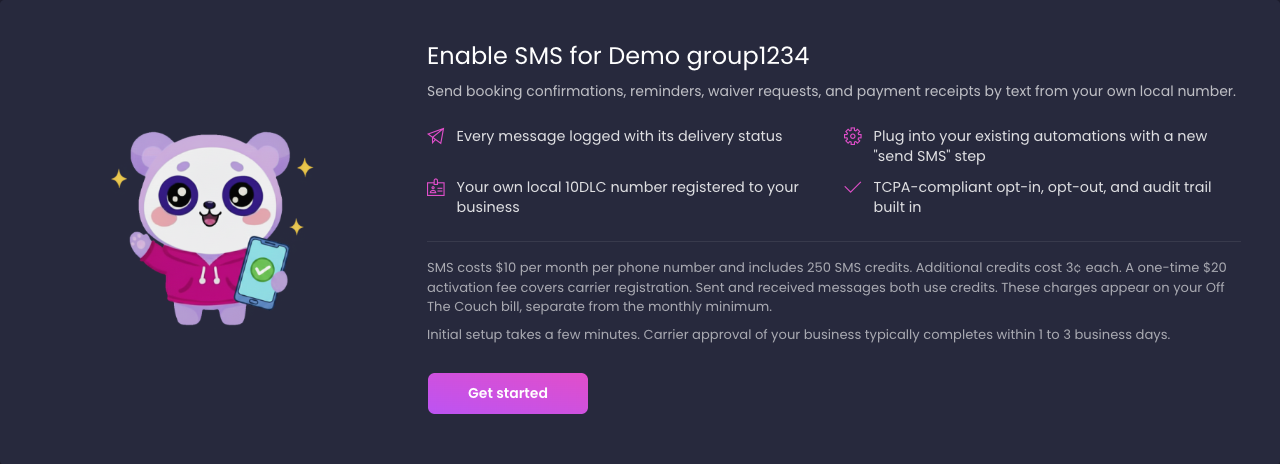
How it works
Carriers require every business that texts customers to be registered before it can send. The setup wizard walks you through that registration in five steps: Business profile, Brand registration, Campaign registration, Phone number and Test and activate. Two of the steps wait on carrier review, which usually completes within 1 to 3 business days each. The wizard shows in review, action needed or active at the top so you always know where you stand.
Once the number is active, three things happen. Your automations can send texts through a Send SMS step. Every text and every reply is listed on the Messages page, where you can answer from the console. And billing starts: $10 per month per number with 250 message credits included, then $0.03 per credit, sent or received, on top of your monthly minimum. A one-time $20 activation fee covers carrier registration.
| Step | What you do | Who approves |
|---|---|---|
| Business profile | Enter the legal business details, address, website, an authorized representative and how customers opt in | Carrier registry, 1 to 3 business days |
| Brand registration | Submit the profile as your brand; nothing new to fill in | Carrier registry, 1 to 3 business days |
| Campaign registration | Give your privacy policy and terms links, describe your opt-in and sample messages, confirm the consent wording | Carrier registry, 1 to 3 business days |
| Phone number | Search by area code and pick a local number | Instant |
| Test and activate | Send one real text to yourself; that activates the location | Instant |
Step-by-step guide
Start the setup
- Open Emails and messaging > SMS settings
- Read the pricing line on the Enable SMS card, then click Get started
- The Set up SMS wizard opens on the Business profile step. The steps on the left show which are complete, in review or need action
Complete the business profile
- Under Legal business information, enter the Legal business name as registered with the IRS, pick the Business type (Sole proprietorship, Partnership, Limited liability corporation, Cooperative, Non-profit corporation or Corporation) and enter the EIN or tax ID
- Under Business address, enter Street address, Apartment, suite, etc. (optional), City, State and Zip
- Under Online presence, enter the Website and pick the Industry closest to yours (for example Entertainment or Hospitality)
- Under Authorized representative, enter the First name, Last name, Title, Email and Phone of the person legally authorized to act for the business. Carriers may contact them
- Under Messaging practices, answer How do customers opt in to receive messages? and fill in Sample 1: booking confirmation (required), Sample 2: booking reminder (recommended) and, if you plan to send marketing texts, Sample 3: marketing message (optional)
- Click Continue to submit the profile
Tip: The profile is prefilled from your company settings where they match. Saved values always win over the prefill.
The footer reads Waiting on profile approval while the registry reviews the profile. If the registry rejects it, the step shows the exact feedback; fix the details and click Save business details.
Register your brand
- Once the profile is approved, the Brand registration step shows Ready to submit
- Click Submit brand registration. Submitting charges the one-time $20 activation fee; if the registry rejects the submission, fixing and resubmitting is free
- The step shows Brand under review until the registry answers, then Brand approved
Register your campaign
- Under Compliance pages, enter your Privacy policy URL and Terms of service URL, and if you have one the Opt-in evidence URL (recommended), a page that shows the consent wording customers see
- Under Campaign details, answer How do customers opt in?
- Under Sample messages, give up to five examples of the texts you will send. Sample 1 and Sample 2 are required
- Under Consent replies, review the Opt-in keywords (START, YES, UNSTOP) and the Opt-in confirmation message that customers receive. These are fixed wording that the registration promises to the carriers
- Under Confirm and submit, tick the confirmation that the details are accurate, that the consent wording appears on your booking form and that the consent checkbox is unchecked by default
- Click Submit campaign. The step shows Campaign under review, then Campaign verified
If the campaign is rejected, the step shows the feedback. Edit and click Resubmit campaign; resubmitting is free.
Choose a phone number
- On the Phone number step, enter an Area code (3 digits) and click Search
- The results list local numbers with their city. If none are available in that area code, the search widens on its own
- Click Select on the number you want. The number is purchased and attached to your registration straight away
Send a test and activate
- On the Test and activate step, your mobile number is prefilled from your staff profile under Send test to. Change it if needed
- Click Send test. The result shows whether the carrier delivered the text; Queued is not success, so wait for Delivered before you rely on it
- The first delivered test activates SMS for the location. The step then reads SMS is now active with Your number shown, and the $10 monthly subscription starts
Tip: After activation you can send another test from the same step at any time. Each test uses one credit.
Write SMS templates
- Open Emails and messaging > Templates and automation and click the SMS templates tab
- Click Create SMS template
- In the drawer, enter a Template name, choose a Type (Booking automation, Payment and orders, Marketing campaigns or General communications), and switch Active on when the template is ready to use
- Write the Message body. The meter under the box shows the character count, how many segments the text uses and how many characters are left in the current segment. Emoji and accented characters switch the text to a shorter segment size, and the meter says so
- Under Personalization, click a variable to insert it. Only variables a text can fill in are listed
- Check the Preview, then save
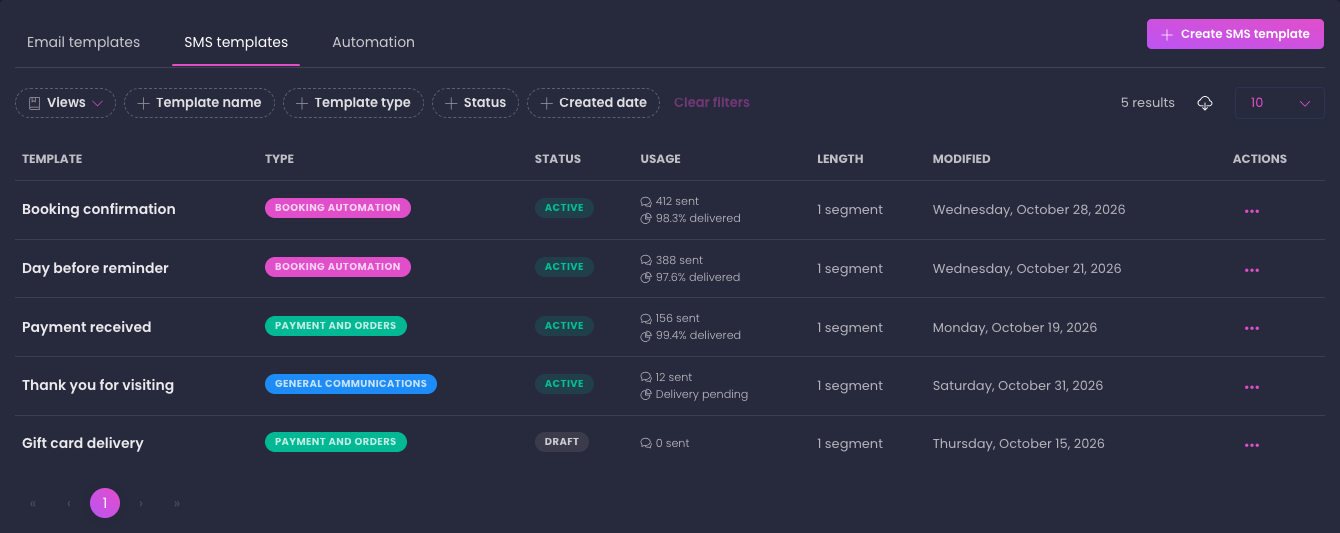
The list shows Template, Type, Status, Usage, Length (segments), Modified and Actions. Usage shows how many texts the template has sent and the share of them that were delivered, or Delivery pending while the carrier has not reported back on any of them yet. The row menu offers Edit template, Activate or Deactivate, and Archive template.
Filter by Template name, Template type, Status (Active, Draft, Archived) and Created date. The download button exports every template that matches the filters, including its sent count and delivery rate.
Send texts from an automation
- Open the Automation tab and open or create an automation
- Add a Send SMS step where you would add a Send email step
- Choose the template under Choose SMS template. Only active templates are listed; if none exist the step says to create one on the SMS templates tab first
- Save and activate the automation. Texts then go out with the automation's trigger, and each one appears on the Messages page with its delivery status
Pause texting for a while
- On the Test and activate step, find the Pause SMS card and click Pause SMS
- Confirm Pause SMS in the dialog
- Texting stops right away and automations skip their text steps. Your number and registration are kept. The subscription ends with the current billing cycle and restarts in full when you resume
- To come back, click Resume SMS on the same step
A number paused for more than 90 days may be reclaimed by the carrier.
Replace a number that is receiving spam
- On the Test and activate step, find the Replace phone number card and click Replace number
- Confirm Replace number in the dialog. The current number is released right away and cannot be recovered
- The wizard returns to the Phone number step. Search and select a new number, then send a test to activate it
- Your registration carries over, so there is no new activation fee, and the subscription continues unchanged
Cancel text messaging
- On the Test and activate step, find the Cancel SMS service card and click Cancel SMS
- Confirm Cancel SMS in the dialog
- The number is released, texting turns off, and the subscription stops after the current billing cycle. Nothing is refunded and the number cannot be recovered. The SMS settings page then shows the cancellation date; contact support to enable texting again
Reference
Registration statuses
| Badge | Meaning |
|---|---|
| in progress | A step is waiting on you |
| in review | The carrier registry is reviewing the profile, brand or campaign |
| action needed | The registry rejected a submission; the step shows the feedback |
| active | The number is live and texting is on |
| paused | You paused texting; the number is kept |
| suspended | The carrier registry suspended the brand; contact support |
| cancelled | You cancelled texting and the number was released |
Pricing
| Item | Rate |
|---|---|
| Activation | $20 one time, charged when the brand is submitted |
| Subscription | $10 per number per month, 250 credits included, no proration |
| Credits beyond the 250 | $0.03 per credit, sent or received |
One credit is one message segment. A plain text of up to 160 characters is one segment; longer texts, or texts with emoji, use more. The template editor shows the count as you type.
Good to know
- Text messaging is available for US numbers only. A text to a number outside the US is refused before it is sent.
- Customers who reply STOP are opted out, and no text reaches them until they reply START. HELP replies are answered by the carrier. Replies are listed on the Messages page.
- Sent and received texts both use credits. A quiet month with one number still bills the $10 subscription, on top of the monthly minimum.
- Pausing, replacing and cancelling all live on the Test and activate step. Pausing keeps the number; replacing and cancelling release it for good.
- Each location registers separately, so a company with three locations that all text needs three numbers and three subscriptions.
FAQ
Q: I do not see SMS settings in the sidebar.
A: Text messaging is in limited beta. Contact support to add your account, and the entry appears for every location.
Q: How long does setup take?
A: Filling in the wizard takes a few minutes. The profile, brand and campaign reviews each take about 1 to 3 business days, so plan on a week from start to first text.
Q: Can I see whether customers read my texts?
A: No. Text messages do not send read receipts, so there is no open rate for SMS. The Usage column on the SMS templates tab shows the delivery rate instead, and texts the carrier refused count as sent and lower that rate.
Q: Can customers reply to my texts?
A: Yes. Replies arrive on the Messages page under the SMS tab, where you can answer them. Each received segment uses one credit.
Q: What happens to my texts while SMS is paused?
A: Automations skip their text steps and the console cannot send. Nothing is queued for later. Resume to start sending again on the same number.